

Overview
Your property’s day in InnSync in a few minutes: where bookings arrive, the room calendar, front desk, rates, and reports.
Watch the videoPMS for vacation rentals and hospitality. Follow bookings, rooms, guest arrivals and recorded payments with your team.

The recorded workflow brings Booking.com, Airbnb and direct guest conversations into the booking calendar. A sold night stops being available on the other channels.

Review rooms, rates and booking sources. Open the details to check dates, category and the remaining amount to collect.
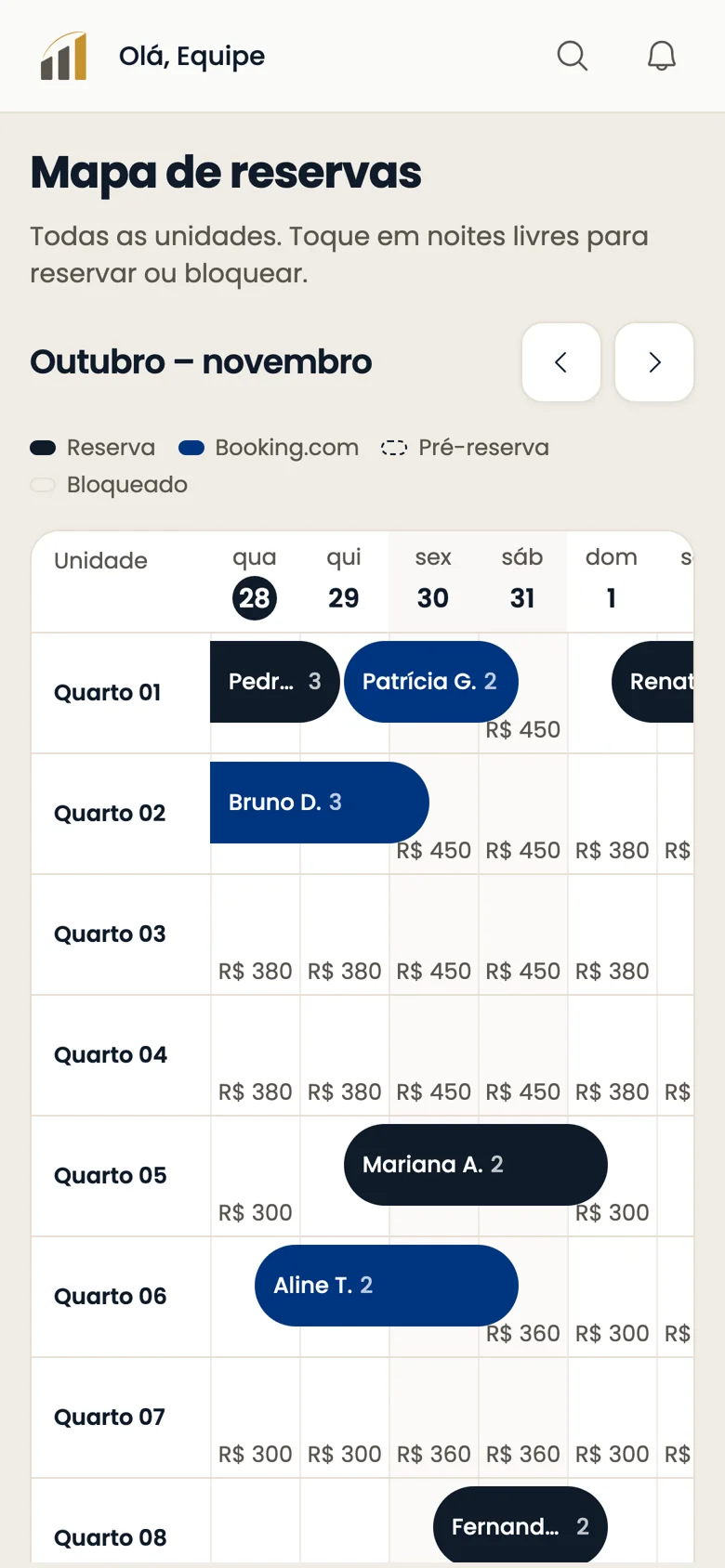
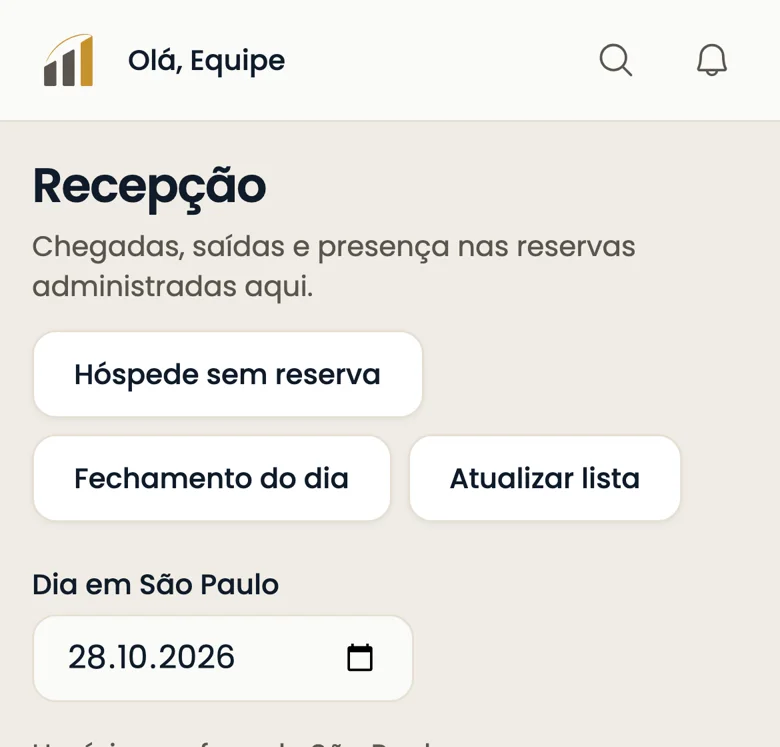
Check arrivals, departures, guests in house and overdue departures. Recording attendance does not confirm payment or documents.
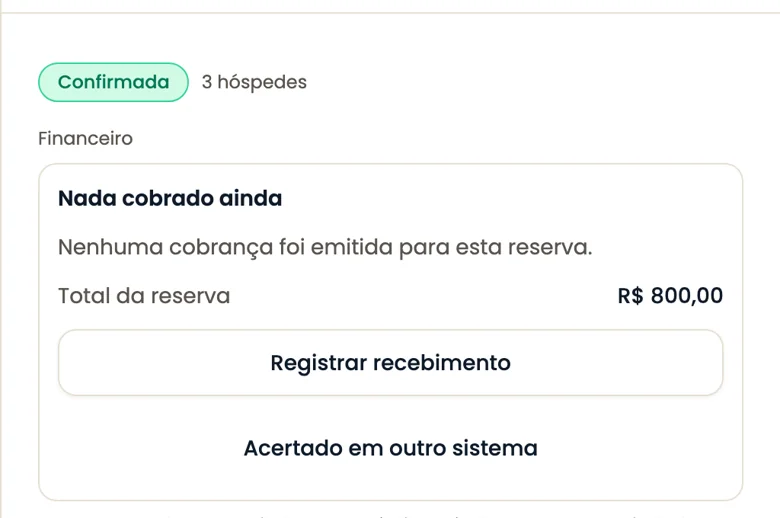
Check totals, receipts and the remaining balance. Your team confirms a provisional booking after recording payment.
The test walkthrough shows room mapping and checks before opening sales. Review synchronization and existing bookings with your team.

The team imports future bookings from an export or spreadsheet. Review opening balances before recording previous receipts.

Review occupancy, average daily rate and revenue by category, channel and month.

The demonstrated provisional booking holds a room while the guest pays. Your team confirms receipt; without confirmation, the dates are released.

Follow the guide to understand each part of your operation.
View the complete guideYour property’s day in InnSync in a few minutes: where bookings arrive, the room calendar, front desk, rates, and reports.
Watch the video
How to start in InnSync: the Overview setup guide, account access, team invitations, and what each role can do.
Watch the video
How to organize your property’s rooms in InnSync: create categories, choose each category’s rooms, and find where photos belong.
Watch the video
How to set each category’s rate in InnSync, change rates by date or season, set minimum stays, and find the cancellation policy.
Watch the video
How to connect Booking.com to your property in InnSync: Hotel ID, mapping rooms to categories, activation, and the first check.
Watch the video
How InnSync sends your property’s rates and available nights to Airbnb and Booking.com from one calendar, and where to connect a channel.
Watch the video
How future bookings from your previous system enter InnSync on switching day, and how to record prior payments in Opening balances.
Watch the video
How to read InnSync’s Booking calendar, enter a booking received by phone or WhatsApp, block a room, and move a guest to another room.
Watch the video
How a Booking.com booking appears automatically in InnSync’s Booking calendar in an available room, and what happens when the guest changes dates or cancels.
Watch the video
How your team uses InnSync’s Front desk: room status, today’s arrivals and departures, and recording each guest’s arrival and departure.
Watch the video
How to record a booking payment in InnSync and confirm Carmen’s WhatsApp provisional booking when the guest pays by Pix, cash, or transfer.
Watch the video
How to decide what happens to a canceled booking’s money in InnSync: how much to retain as a penalty and how to record the remaining refund.
Watch the video
How to check daily incoming and outgoing funds in InnSync by payment method, with entries, receipts, and monthly export.
Watch the video
How Carmen answers guests on WhatsApp, checks the rates set up in InnSync, holds the room with a provisional booking while the guest pays, and hands the conversation to your team when a request falls outside your property’s rules.
Watch the video
How to view and adjust InnSync’s guest messages from booking to departure, and how to email the building’s front desk for every new, changed, or cancelled booking, plus the day’s list.
Watch the video
How to read InnSync’s Reports: monthly occupancy, average daily rate, RevPAR, and gross revenue, by unit type, channel, or month.
Watch the videoOn Booking.com itself. InnSync follows the change or cancellation.
Install InnSync from your browser and open it through its own icon and window. It is a web app, not a native store app.
Use on your phoneNo. On iPhone use Safari, Share and Add to Home Screen. On Android use the Chrome menu.
Use on your phoneYes, on supported devices. Install on the Home Screen, open the icon and allow notifications. iOS requires installation for web notifications.
Use on your phoneYes, after enabling and allowing them on the device, according to your preferences. On a computer, the tab can close but the browser must remain open.
Use on your phoneInstall from your browser and open the Home Screen icon. It is an installable web app, with no App Store or Google Play download.
Use on your phone
How to use InnSync on your phone like an app: install on the iPhone or Android Home Screen, receive notifications with InnSync closed, choose alerts, and see what you can do on your phone.
Watch the videoLog in or create your account to get started.